Roaming testing
Test an OCPI partner from the Dashboard: send single requests in the Playground, chain them in Workflows, seed sample data with the Data generator, and run read-only Test cases.
Roaming → Testing holds four lab tools for OCPI integrations. They are in Beta. The Playground, Workflows, and Test cases send requests to a partner through the OCPI gateway. The Data generator creates sample rows in your OCPI data.
Before you start
- For Playground, Workflows, and Test cases: an Active partner operation with a completed credentials handshake
- For features that send as your party: your OCPI party ID and country code set in Business details
| Tool | Route | Use it to |
|---|---|---|
| Playground | /dashboard/roaming/playground | Send one push, pull, or command to a partner and see the reply |
| Workflows | /dashboard/roaming/workflows | Chain commands, pulls, and pushes into a scenario and run it against a partner |
| Data generator | /dashboard/roaming/data-generator | Fill your OCPI modules with sample rows you can push to a partner |
| Test cases | /dashboard/roaming/test-cases | Run read-only OCPI conformance cases and review partner results |
Send a single request
Path: Roaming → Playground.
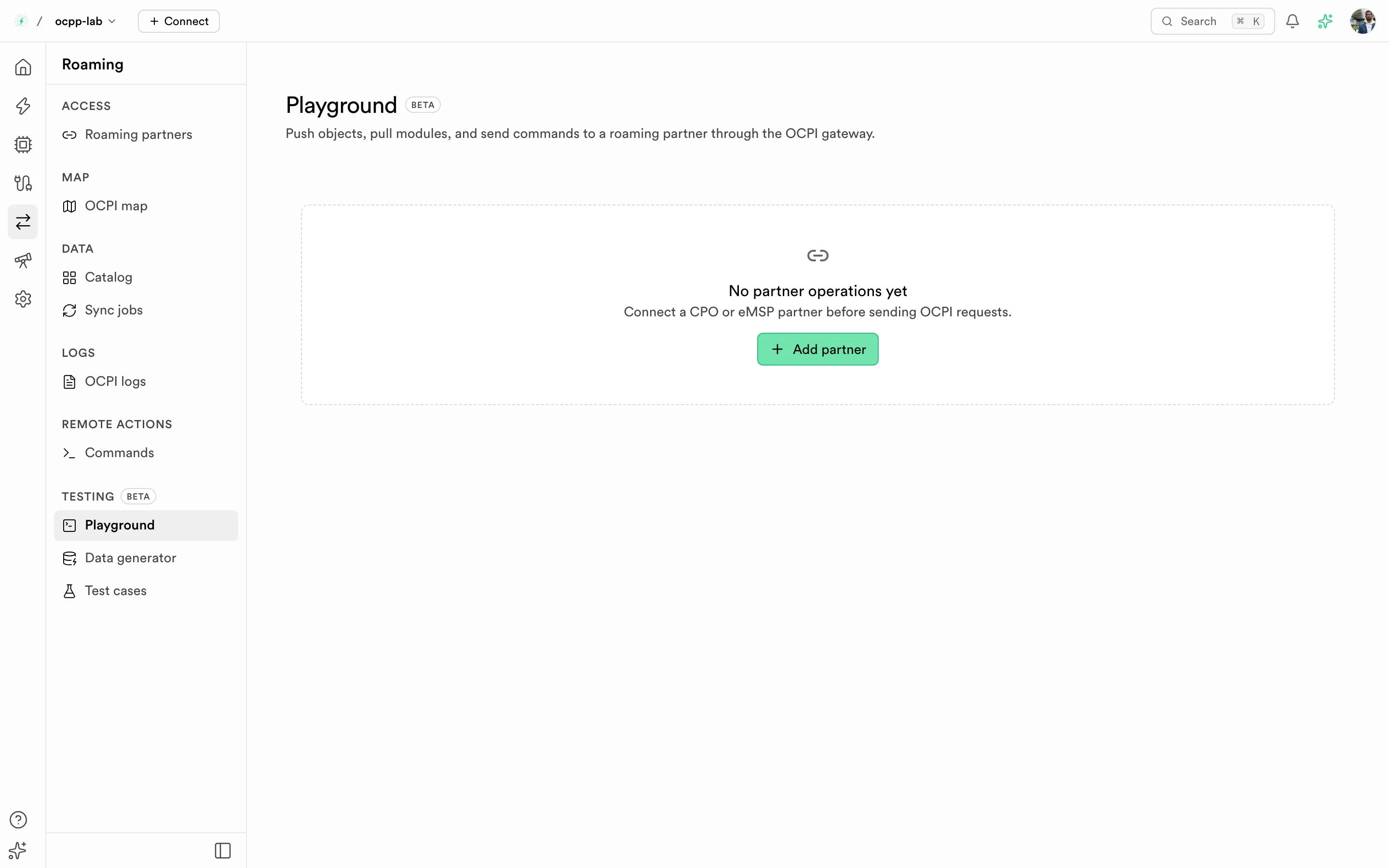
Playground — the partner card shows their role, your role, and the OCPI version. A warning appears while the partner's handshake is unfinished.
- Pick a partner operation. Its role and OCPI version decide which operations are offered. You act as the opposite role: with a CPO partner you send eMSP requests.
- Pick Push (send one stored object by ID), Pull (fetch a whole module into the Catalog), or Command.
- Pick one of your stored objects (for a push) or fill the body, select Format if needed, confirm, and read the partner's response in History.
If the page shows Partner registration not finished, the gateway cannot call that partner yet. Finish the handshake in Roaming partners first.
What each role can do:
| Kind | Partner is CPO | Partner is eMSP |
|---|---|---|
| Push one object | tokens | locations, sessions, CDRs, tariffs |
| Pull a module | locations, sessions, CDRs, tariffs, hub client info (OCPI 2.2.1) | tokens, hub client info (OCPI 2.2.1) |
Run a workflow
Path: Roaming → Workflows.
A workflow is a chain of steps on a canvas that runs against one partner operation. Each step passes or fails on what the partner answered.
- Select Create workflow, name it, pick a partner operation, and start from Blank or a template. Templates that don't fit the partner's role or OCPI version are disabled.
- On the canvas, drag steps from the Steps panel or select + to add one after the last step. Select a step to edit it; changes save on their own.
- Select Run workflow. The confirmation names the partner, the OCPI version, and how many steps call the partner. Use Stop run to stop after the current step.
- Read each step's result on its card and in the Run log. With no run in progress, the log lists Recent runs; open one to see its steps again.
| Step | What it does | Passes when |
|---|---|---|
| OCPI call | One push, pull, or command (the same operations as the Playground) | The push is SUCCESS, the pull has no error, or the command answer matches the expected one (ACCEPTED by default) |
| Wait for command result | Waits for the partner's CommandResult | The result matches the expected one before the timeout |
| Wait for session | Finds the session started by this run | The session reaches ACTIVE or COMPLETED before the timeout |
| Check CDR | Finds the CDR of that session | The CDR arrives before the timeout |
| Delay, Start, End | Flow only | Always |
Templates: Remote start → stop, Rejected start, Reserve → start → stop, Stop → unlock connector, Charging profile in a session (you act as eMSP), and Session and CDR push (you act as CPO).
Every run gets its own authorization_reference. Steps can reuse values with placeholders: {{run.authorization_reference}} or {{steps.<step id>.session_id}}. Session and CDR steps need OCPI 2.2.1 or later, because OCPI 2.1.1 has no authorization_reference.
Only owners and admins can run workflows, and only against a partner whose credentials handshake is finished. A workflow runs once at a time. A step the partner refused shows Rejected; no answer, an OCPI error, or a timeout shows Failed with the partner's message. Use the row menu in the list to duplicate or delete a workflow.
Seed sample data
Path: Roaming → Data generator.
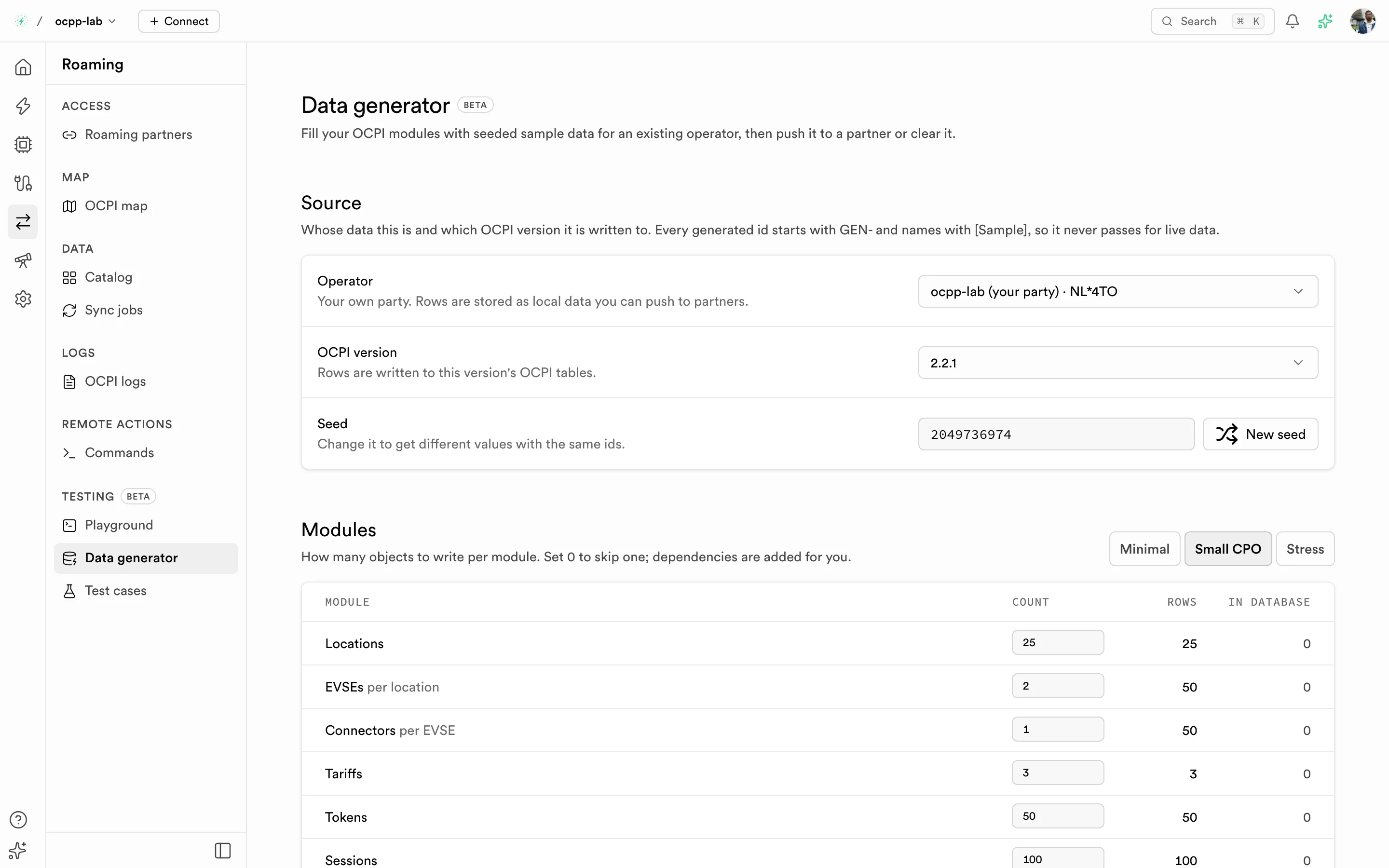
Data generator — choose the operator, version, seed, and how many rows per module.
- Pick the Operator and the OCPI version whose tables receive the rows. Your own party stores local data you can push to partners; a partner operator stores the rows as data received from that partner, with no push.
- Pick a preset — Minimal, Small CPO, or Stress — or set counts per module. Dependencies are added for you: CDRs add the sessions and tariffs they need; sessions add locations and tokens.
- Generate. The rows appear in the Catalog, on the OCPI map, and in Playground pickers.
Only owners and admins can generate or clear rows; other members can preview the dataset. Every generated ID starts with GEN- and names start with [Sample], so sample rows never pass for live data. The same seed and counts always produce the same rows; generating again updates them in place. Use New seed for different values, or clear the rows when you are done.
Run conformance test cases
Path: Roaming → Test cases.
- Choose a partner operation. Its role and OCPI version determine which conformance cases and certification IDs appear.
- Select Run suite to test the read-only Bruno modules in a sandbox, or Run module beside a case to run that case's whole module. Workflows and manual confirmations are separate actions.
- Follow the Queued or Running notice for the selected modules and the number of modules finished. Case rows retain their latest saved results and update as modules finish. Select Cancel run to stop an active run.
- Open a row to review its checks, request and response logs, sequence diagram, and details. Some certification IDs open a workflow, show requests the partner sent to your gateway, or provide steps for a manual confirmation.
Only owners and admins can start or cancel sandbox runs, confirm manual results, or withdraw a confirmation. Other members can review results, open workflows, and check registered endpoints.
Runs are shared with everyone in your organization. The latest-run notice identifies its outcome, modules, and finish time when available. Each case keeps its latest saved result, which may be from an earlier run; a passed module run does not establish that every case on the page passed.
Results distinguish Passed, Failed, Inconclusive, and cases that were not run. Inconclusive means the checks did not establish a passing result, for example when the partner returned no objects to validate or no applicable checks ran. An incomplete sandbox run is reported separately from earlier case results. If the page says the partner registration is unfinished, complete the credentials handshake in Roaming partners before running the suite.
Related
- Roaming — partners, Catalog, sync jobs, commands, and logs
- OCPI overview