Locations
Group managed chargers by location, set the address and time zone, and choose whether drivers see the location in partner apps.
Locations lists the places where your charge points are installed. A location gives chargers an address and coordinates for the OCPP map, a time zone for reporting, and the OCPI Location that sessions, tariffs, and roaming partners use.
Path: /dashboard/chargers?tab=sites
Sidebar: Charging management → Managed chargers → Locations tab
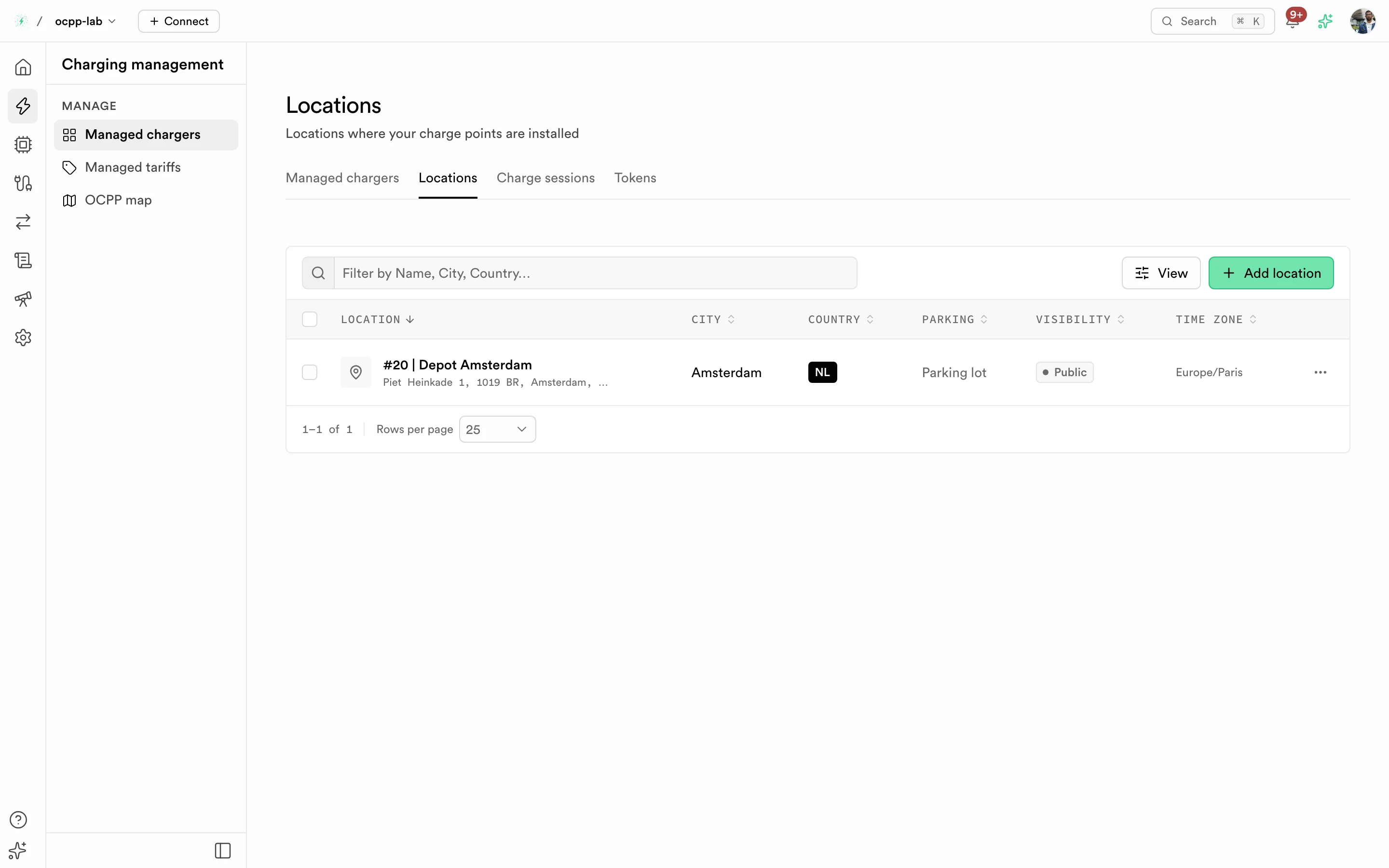
Locations. Each row is a location with its city, country, parking type, visibility, and time zone.
Lab chargers use their own sites under Virtual charger → Charger sites.
Columns
| Column | What it shows |
|---|---|
| Location | Location name and street address |
| City and Country | Where the location is |
| Parking | Parking type. — when not set |
| Visibility | Public when partners may show the location to drivers in their apps, Hidden otherwise. — when unknown |
| Time zone | Time zone used for the location's reports |
Add a location
-
Select Add location. The Add location sheet opens.
-
Under Location details, fill the address:
Field Required Format Site name Yes For example Main office parkingStreet address Yes Up to 255 characters City Yes Up to 100 characters Postal code No Country (3-letter code) Yes ISO 3166-1 alpha-3, for example FRACountry code Yes ISO 3166-1 alpha-2, for example FR -
Under Settings, choose the Time zone, an optional Parking type, and whether to Show to drivers.
-
Optional: pin the location on the map or enter Latitude and Longitude in decimal degrees. Left blank, the coordinates come from the address.
-
Select Add location. The location appears in the list.
To change a location, open its row menu, select Edit, and then Save changes. Select View to open the location with its chargers. The chargers table there shows each charger's connection, OCPP version, and whether it is published to roaming.
Assign chargers to a location
- Several at once: in Managed chargers, select the chargers, then Assign location in the selection bar. Pick the location and select Assign. Leave the location empty to take the chargers off their location.
- One charger: pick the location in Location when you create a charger, or edit it from its detail page.
The location then shows in the Location column of Managed chargers and on the OCPP map. Moving a charger to a location of the same OCPI party keeps its tariffs; moving it to another party, or off its location, unlinks them.
Roaming
Partners receive a charger only when it has Publish to roaming on (in the charger's Create or Edit sheet) and sits on a location. Show to drivers does not decide what partners receive; it tells them whether to list the location in their driver apps.
Troubleshooting
| Message or symptom | What to do |
|---|---|
| Must be a 3-letter code (e.g. FRA, DEU, USA) | Use the alpha-3 country code |
| Time zone is required | Pick a time zone under Settings |
| The location is missing from the OCPP map | Add coordinates, and assign at least one charger to it |
| Partners do not receive a charger | Turn on Publish to roaming on the charger and assign it to a location |
| Partners receive the location but drivers do not see it | Turn on Show to drivers |